Flyable Airliner
A narrow-body airliner you can actually fly: take off with flaps, raise the gear, bank through a mountain valley, lower everything again and land, from a chase camera, the captain's seat or a passenger window. Seven controls, mouse-aim flying in the style of arcade flight games, a 24 km demo valley to fly over, and every control surface, lever, gear leg and door animating as you fly.
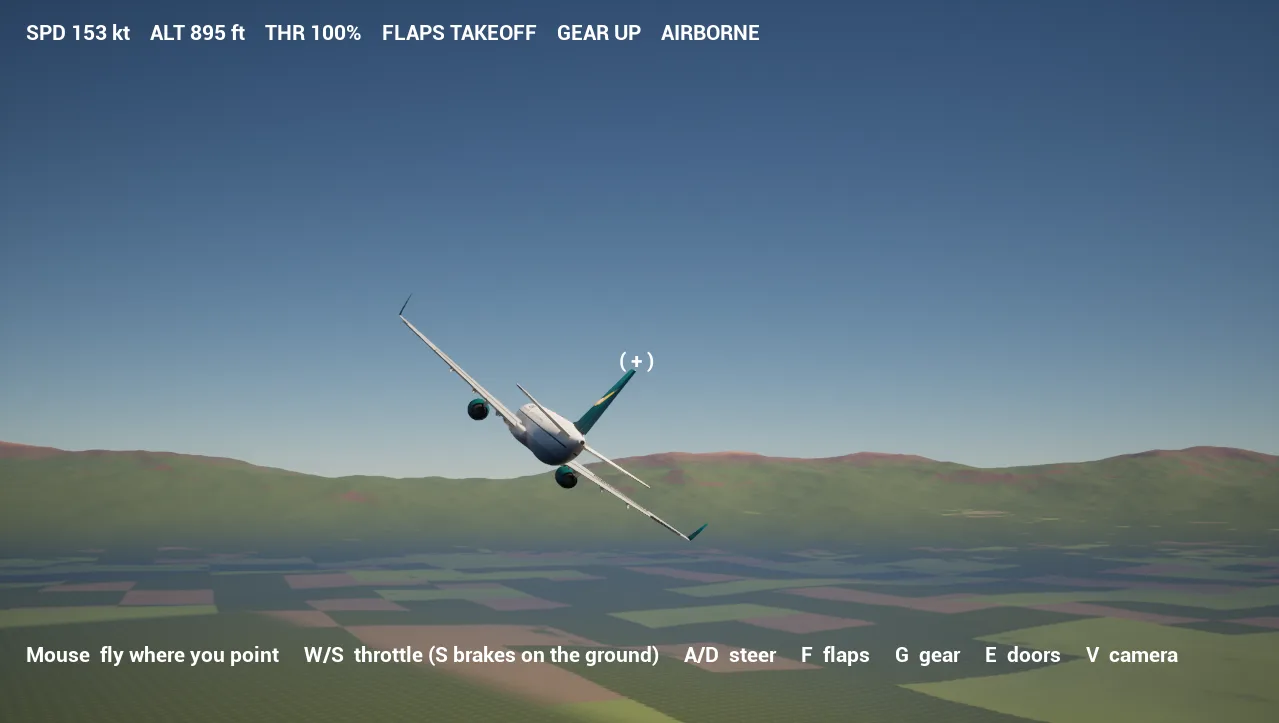
FlyableAirliner/Flight/L_Airliner_Flight and press Play. Nudge the mouse up a little, hold W to full throttle, and the airliner lifts its own nose at take-off speed. Press G to raise the gear, then point the mouse where you want to go. Everything below is detail.Get it on the Exaro store or on Fab (search Flyable Narrow-Body Airliner).
1. Install
From Fab:
- In the Epic Games Launcher, open Fab Library, find Flyable Narrow-Body Airliner and click Add to Project.
- Pick your project and Unreal Engine 5.7. The pack lands in
Content/FlyableAirliner.
From the Exaro store: the download holds the five game-ready packages (exterior, cockpit, cabin shell, cabin seats, service) as FBX and GLB with their levels of detail and fitted collision, and an Unreal folder with FlyableAirliner_UE5.7.zip.
- Unzip it. It is a ready project,
FlyableAirliner.uproject, that opens on the flight map: press Play. - To fly it in your own game, close your editor and copy the project's
Content/FlyableAirlinerfolder into your project'sContentfolder, then open your project again (section 7).
The pack is Blueprints and content only: no plugin, no C++. Besides the flight map it has Maps/L_Airliner_Overview, which lays out every Blueprint, mesh and animation of the pack. The demo project renders with DirectX 12, Lumen and hardware ray tracing; copied into your game, the airliner uses your project's settings.
2. The controls
Seven controls, the way mouse-and-keyboard flight games do it: you point, the aircraft flies there. There are no separate keys for pitch and roll to juggle; the mouse sets where you are going and the aircraft banks and pitches to follow.
| Control | What it does |
|---|---|
| Mouse | Fly where you point. The ( + ) in the middle of the screen is your aim; the aircraft turns, climbs or descends toward it. On the runway, moving the mouse up sets how far the nose lifts when you reach take-off speed. |
| W / S | Throttle up and down. On the ground S also works the wheel brakes. |
| A / D | Steer the nose wheel on the ground; rudder in the air. |
| F | Flaps: each press steps UP, TAKEOFF, LAND, then back to UP. |
| G | Landing gear up or down (only in the air). It takes about nine seconds, doors and all. |
| E | Open or close the doors, when you are stopped on the ground. They close themselves once you roll. |
| V | Camera: chase, cockpit, passenger window seat (section 4). |
A few things happen for you: the speed brakes pop up after touchdown once the throttle is closed, the arrow keys (and the number pad) nudge the aim if you would rather not use the mouse, and after a crash the readout offersEnter to put you back on the runway.
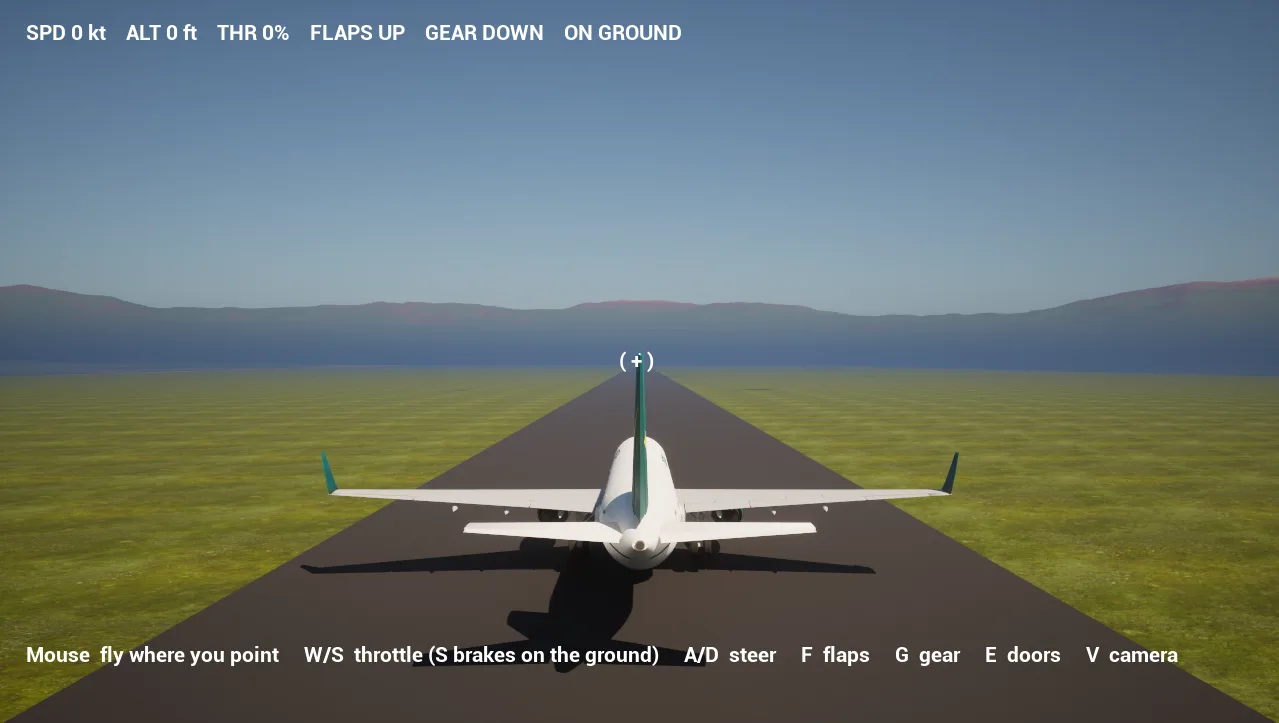
3. A first flight
Take off
- Press F once for TAKEOFF flaps.
- Move the mouse up a little so the ( + ) sits just above the horizon: about ten degrees is right.
- Hold W until the throttle reads 100%. You roll down the runway and, at about 120 knots, the nose lifts and you climb away. Steer with A / D to stay on the centreline.
- Once you are climbing, press G to raise the gear and F twice more to bring the flaps up (LAND, then UP).
Fly
Point the mouse where you want to go. A turn banks the aircraft, up to sixty degrees for a tight one, and it rolls level by itself when it is on the new heading. Point above the horizon to climb and below it to descend; ease the throttle back with S when you are high and fast. Fly too slowly and the wings stop holding you up: the nose drops and you sink until you pick up speed again.
Land
- Line up with the runway a few kilometres out and bring the throttle back to about 20% with S.
- Press G for gear down and F until the flaps read LAND.
- Put the ( + ) just below the horizon, a gentle two or three degrees down, and let the aircraft settle toward the runway at around 140 knots.
- On touchdown, hold S: the throttle closes, the brakes come on and the speed brakes deploy. You stop in about fifteen seconds.
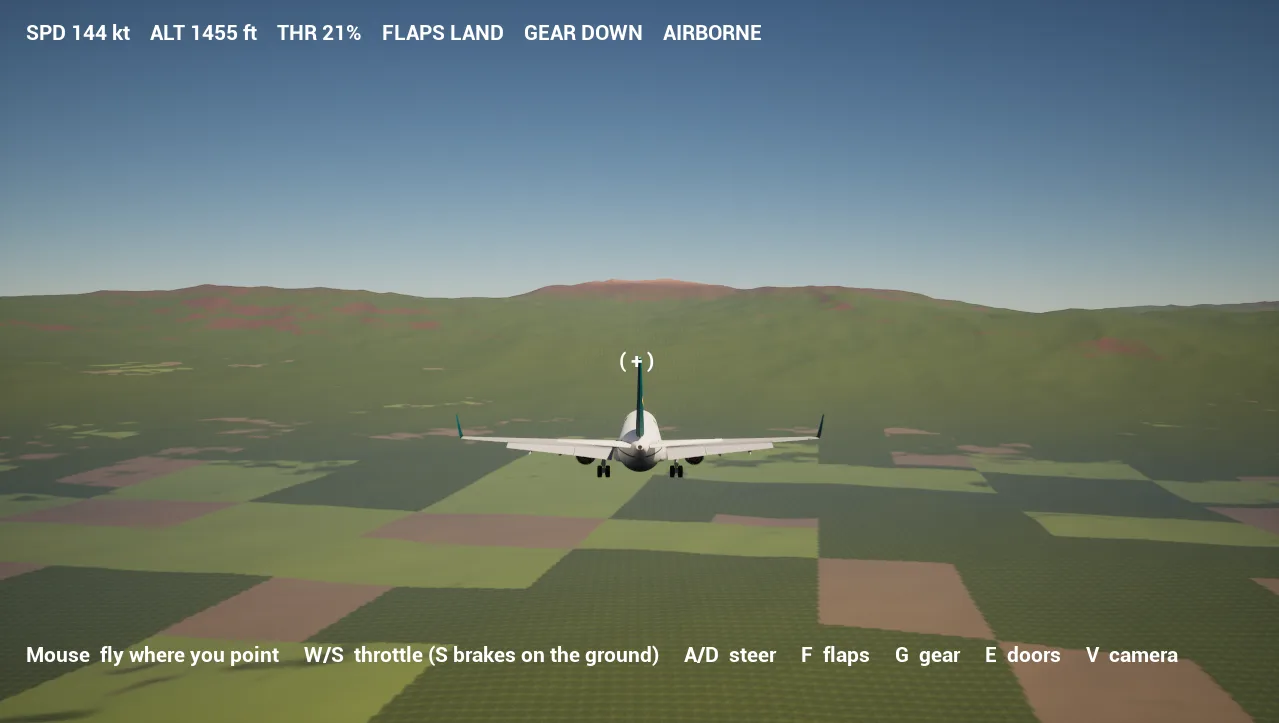
A landing counts if the gear is down, you are sinking slower than about 6 m/s (1,200 feet a minute), the wings are within twenty degrees of level and the nose is no more than six degrees down. Anything harder, or a belly landing with the gear up, is a crash: the readout says so, and Enter starts you again at the end of the runway.
4. Cameras
V cycles through three views.
| View | What you see |
|---|---|
| Chase | Behind and above the aircraft, looking where you aim. The horizon stays level while the aircraft banks. |
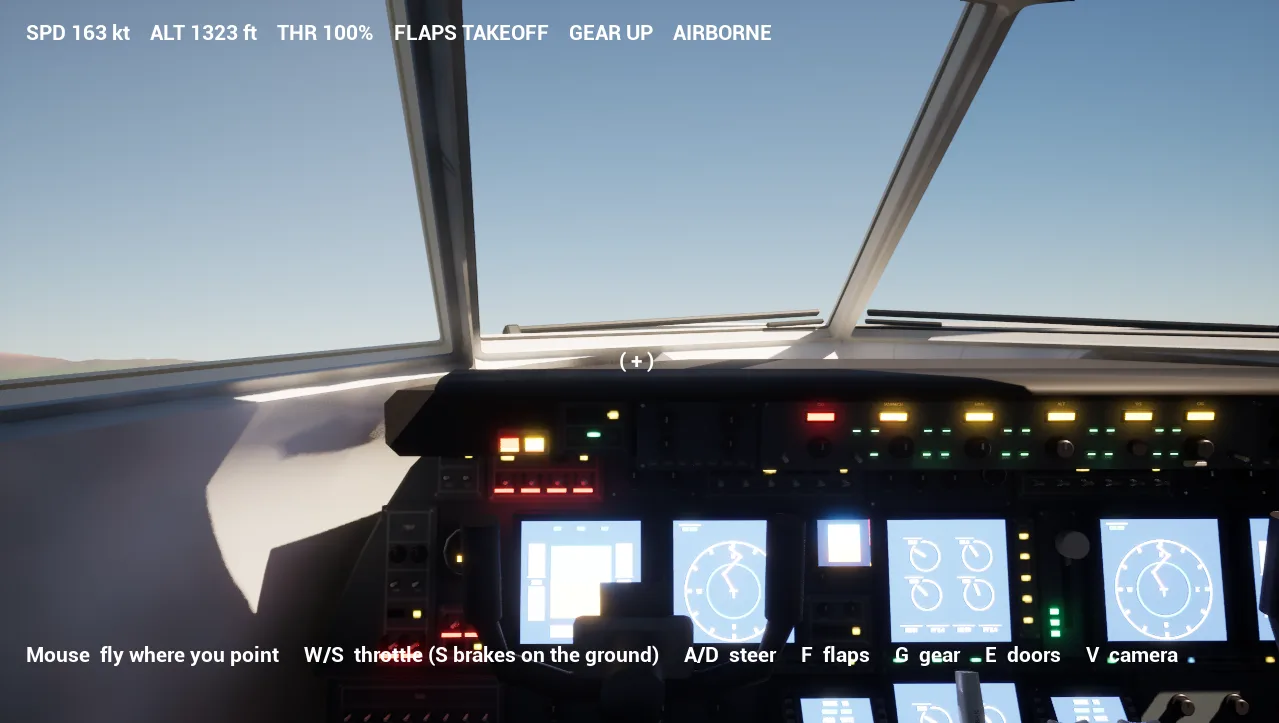
| Cockpit | The captain's seat, first person. Your head turns toward where you are aiming, so you look into a turn before the nose gets there. The yoke, thrust levers and flap lever move with the controls. |
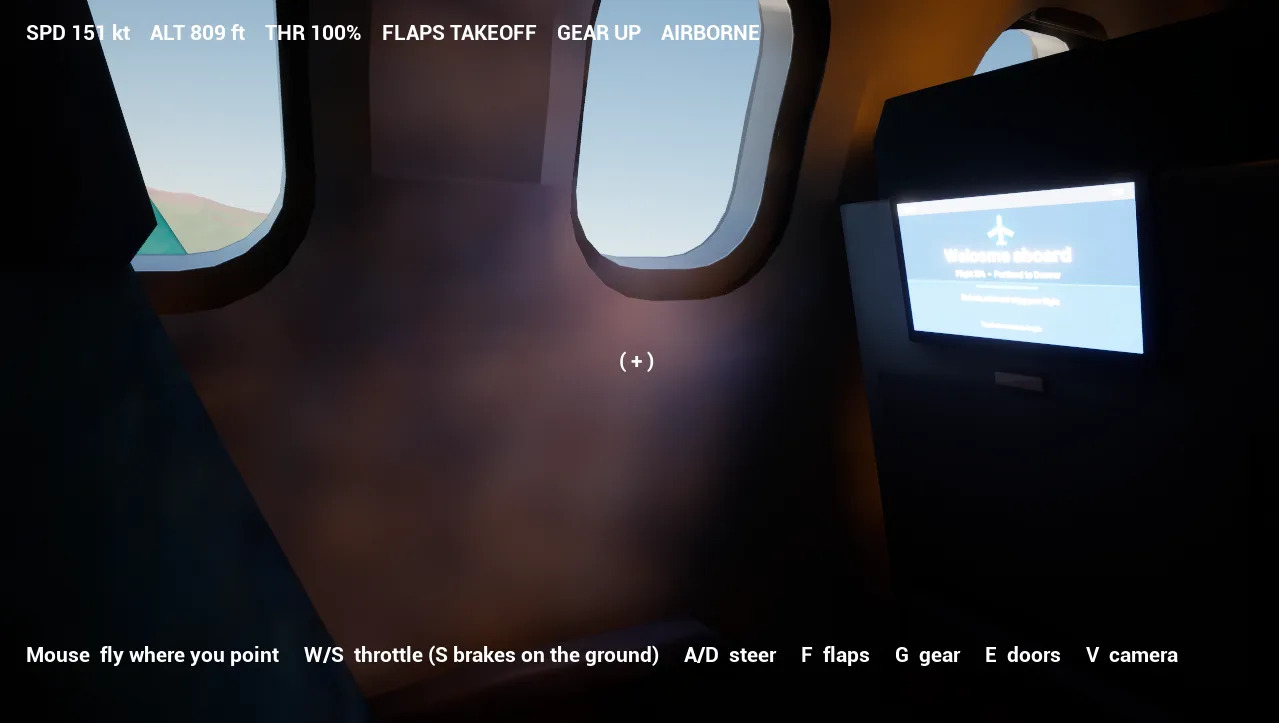
| Passenger | A window seat over the wing. Here the mouse looks around instead of flying, and the aircraft holds its course: look out at the wing and the valley, or at the seatback screen. |
5. On the ground
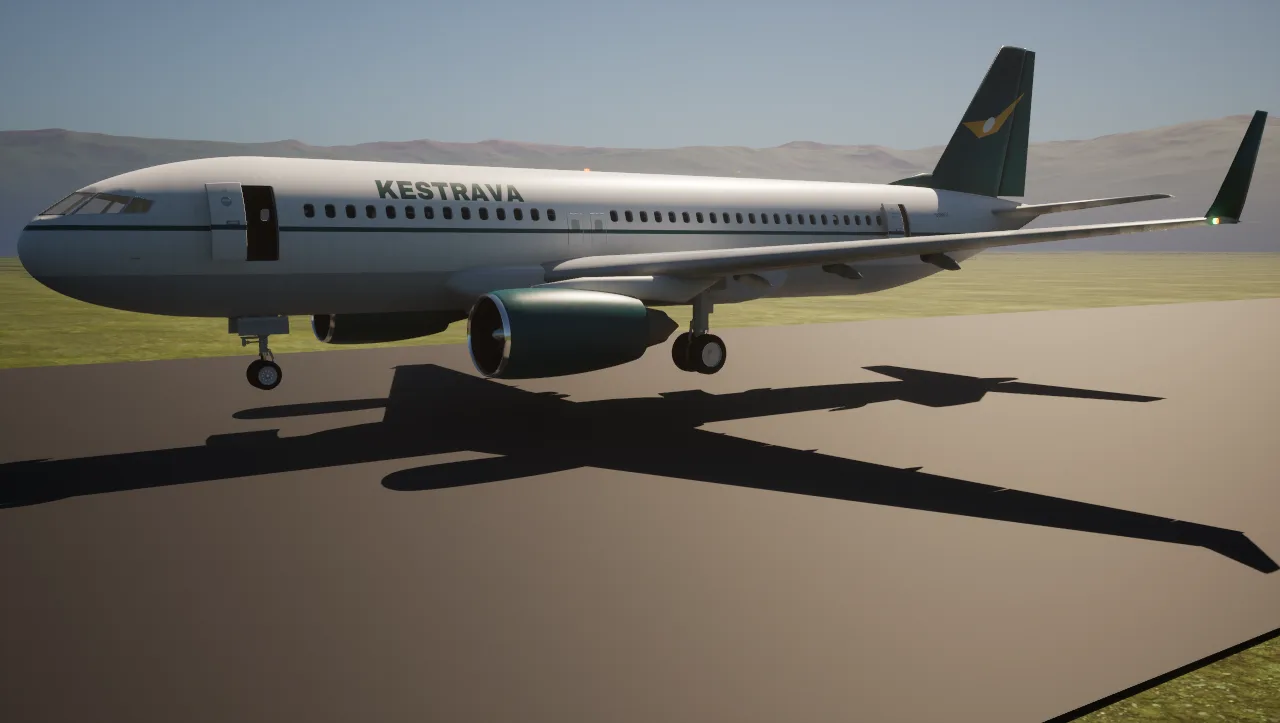
Stop on the runway and press E to open the passenger and cargo doors; press it again to close them. They only open when you are stopped, and they swing shut on their own if you start rolling.
6. The demo valley
L_Airliner_Flight puts a four-kilometre runway in a 24 km valley of farmland and rolling hills, ringed by mountains that rise to nearly a kilometre with rock on the steep faces and snow on the peaks. The mountains always tell you where the edge of the world is. The terrain is an ordinary Unreal landscape with a layered material: no plugin is needed to open, play or edit it.
7. In your own level
- Open your level and, in World Settings, set GameMode Override to
BP_GM_Airliner_Flight. - Put a Player Start at the end of a runway, facing down it. Anything that blocks the Visibility channel counts as ground (a landscape, a runway mesh), so give it at least three kilometres of flat ground to take off and land on.
- Press Play. The airliner spawns at the Player Start, settles onto its wheels and is yours to fly.
The flight readout comes with it (WBP_GR_FlightHud).
8. Tuning
Every placed BP_Airliner_Flight has its own Flight settings in the Details panel, each with a tooltip. Units are Unreal's: centimetres, seconds and degrees.
| Setting | Default | What it does |
|---|---|---|
| MaxThrust | 320 | Acceleration at full throttle, cm/s². Higher means a shorter take-off roll. |
| DragK | set from 480 kt | Air drag; together with MaxThrust it sets the top speed. |
| StallSpeed | 150 kt | Below this (clean) the wings stop holding the aircraft up. Flaps lower it. |
| FlapStallDrop | 0.3 | How much full flap lowers the stall speed (0.3 is 30%). |
| PitchRate / RollRate / YawRate | 10 / 45 / 6 | How fast the aircraft pitches, rolls and yaws, degrees a second. |
| SteerRate | 25 | Nose-wheel steering at taxi speed, degrees a second. |
| BrakeDecel / RollDrag | 450 / 15 | Wheel brakes and rolling resistance on the ground, cm/s². |
| LandSink | 600 | The steepest descent that still lands, cm/s. Lower it for a stricter game. |
| MouseAim | 0.25 | Mouse sensitivity: degrees of aim per mouse count. |
| Clearance | 128 | Height of the actor's origin above the wheels' contact, cm. Leave it unless you change the mesh. |
| Views / CabinLook | 3 / -62 | How many views V cycles through (2 drops the passenger seat), and where the passenger view rests, degrees from the nose. |
The cameras are ordinary components on the Blueprint: ChaseArm and ChaseCam for the chase view, DeckCam at the captain's eye and CabinCam at the window seat. Move them in the Blueprint editor to change a view.
9. How it is put together
BP_Airliner_Flight is a Pawn that carries the aircraft's parts as child actors: the exterior, flight deck, cabin shell, seats and service areas. Each frame it reads the controls, works out speed, lift and attitude, moves the whole aircraft, and sets the inputs of the two control Anim Blueprints (ABP_Airliner_exterior_Controlsand ABP_Airliner_cockpit_Controls): Roll, Pitch, Yaw, Steer, Flaps, Spoilers, Thrust, Gear, FanSpeed and WheelSpeed. That is why the ailerons, elevators, rudder, flaps, spoilers, gear, fans and wheels outside move together with the yoke and levers inside. If you write your own flight model, set those same inputs and everything still animates.
It is all Blueprint: no plugin, no C++, nothing to change in your project settings.
Troubleshooting
| What you see | Why, and what to do |
|---|---|
| The aim moves too fast or too slowly | Change MouseAim on the placed aircraft (section 8). |
| It will not leave the ground | The nose only lifts if the ( + ) is above the horizon. Move the mouse up a little, and use TAKEOFF flaps for a shorter roll. |
| G does nothing | The gear only retracts in the air. |
| E does nothing | The doors only open when you are stopped on the ground. |
| "CRASHED" on touchdown | Too fast a descent, too much bank, nose down, or the gear still up. Press Enter and try a shallower approach with the gear down. |
| It falls through the ground in your own level | Your ground must block the Visibility trace channel; a landscape or a mesh with collision does. |